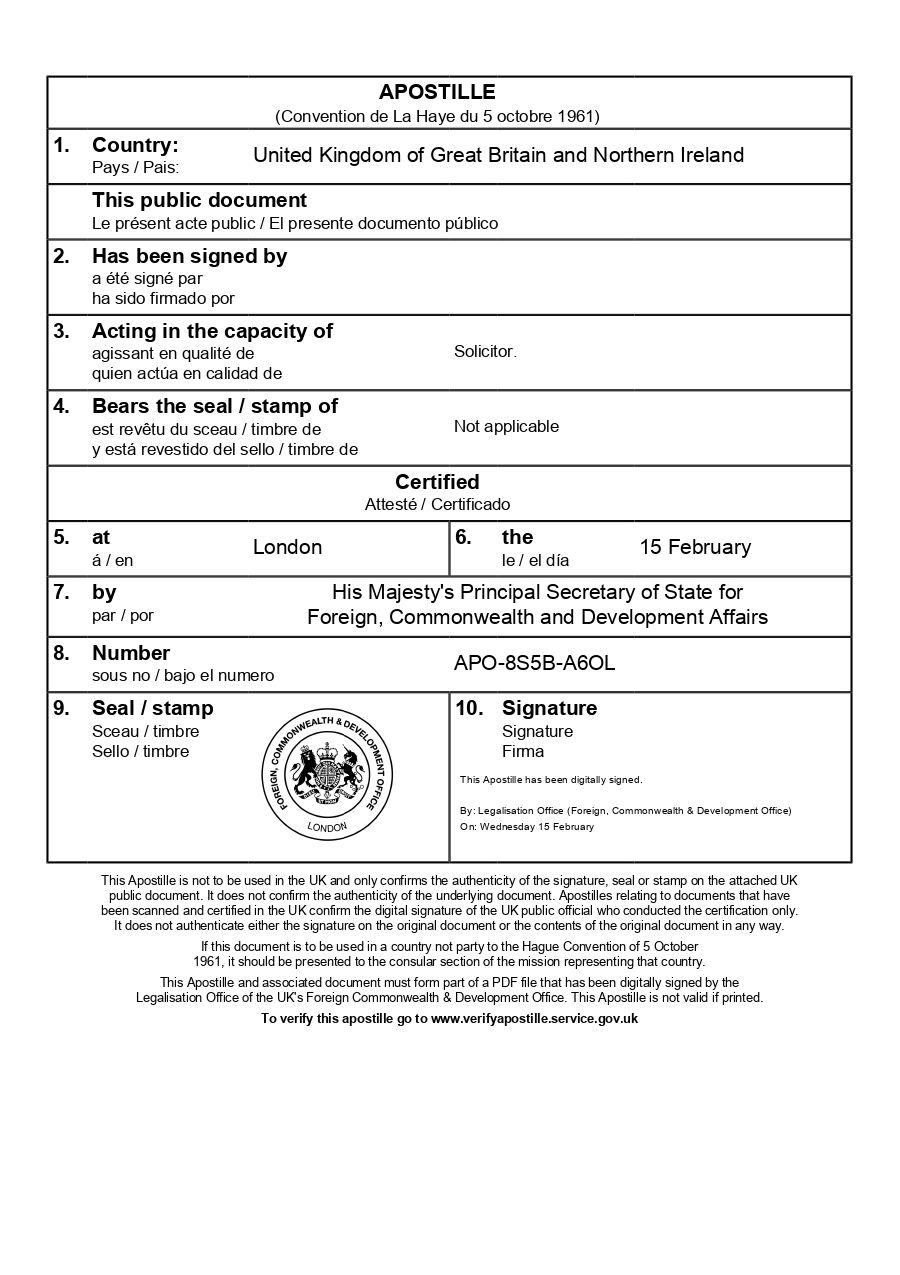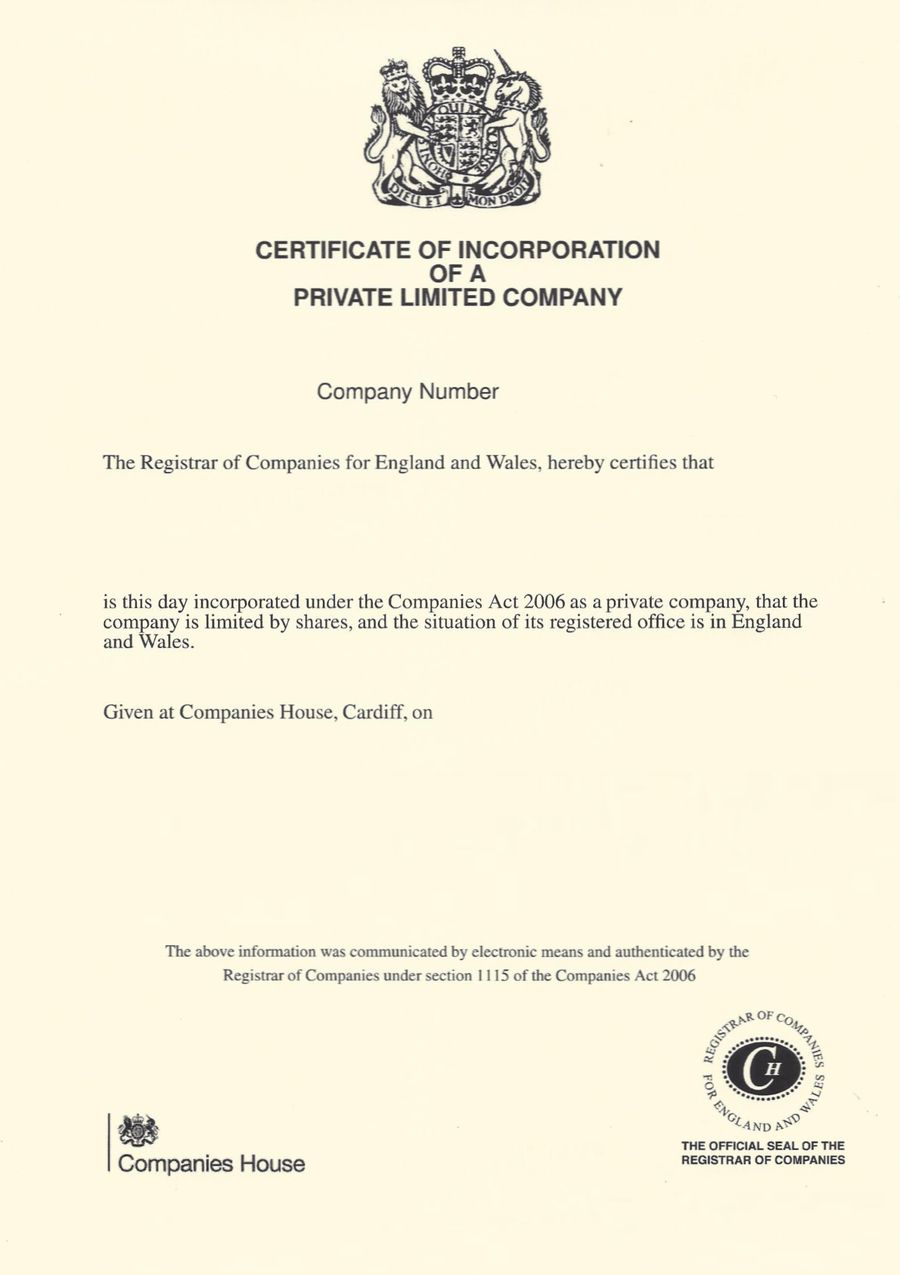
How to Scan or Photograph Documents Correctly
How to Scan or Photograph Documents Correctly
High-quality scans and photographs are essential when preparing documents for the e-Apostille. Poor quality images can delay processing, require resubmission, or even result in rejection. This guide explains how to create clear, acceptable scans and photos of your documents for certification and e-Apostille. It is important to note that in some instances we still require original, physical documents to be posted to us. We will let you know when that is the case.
Key points:
- Why scan quality matters for e-apostille
- Best practices for scanning documents
- How to photograph documents when scanning isn’t available
- Common mistakes that cause delays
Everything You Need for a Fast Legalisation Service
Your e-Apostille is issued directly by the UK Foreign, Commonwealth & Development Office (FCDO). Our team will verify the document and organise valid electronic solicitor certification to avoid delays.
Why Scan Quality Matters for the e-Apostille
Why Scan Quality Matters for the e-Apostille
When you submit a scanned or photographed document for e-apostille, it must be clear enough for our solicitors to verify authenticity and for the FCDO to process. Poor quality images can make seals, signatures, or text illegible, which may prevent certification or apostille altogether. In some cases we still need original documents to be posted to us. We will let you know when that is the case.
How to Scan Documents Properly
How to Scan Documents Properly
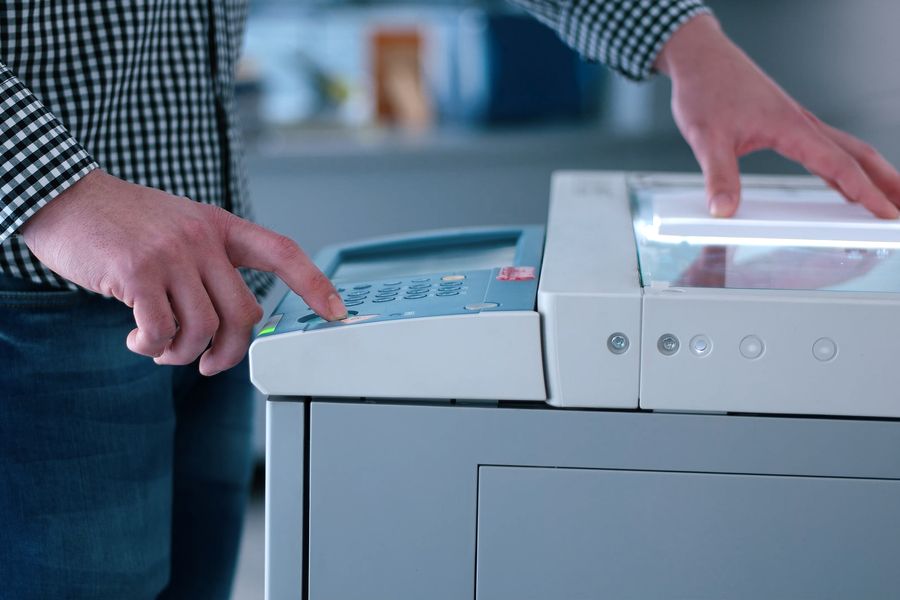
Using a flatbed scanner is the best method for creating high-quality digital versions of paper documents. Here’s how to achieve optimal results.
- 1
Prepare your document: Remove any paperclips, staples, or bindings that might prevent the document lying flat. If your document is in a protective sleeve, remove it before scanning. Clean the scanner glass with a soft, lint-free cloth to remove dust and fingerprints that could appear in your scan.
- 2
Position the document correctly: Place your document face-down on the scanner glass, aligned with the corner or edge markers. Ensure the document lies completely flat with no curled edges or wrinkles. Close the scanner lid gently to avoid shifting the document.
- 3
Configure scanner settings: Set the resolution to at least 300 DPI (dots per inch). This provides clear, readable text while keeping file sizes manageable. Higher resolutions (400-600 DPI) can be used for documents with fine details or small text, but avoid exceeding 600 DPI as this creates unnecessarily large files. Select colour scanning mode, even if your document appears black and white, as this captures coloured seals, stamps, or security features that may not be obvious.
- 4Choose the right file format: Save as a PDF for single or multi-page documents. PDF is the standard format for the e-Apostille and preserves quality well. Alternatively, use JPEG or PNG for image files, though PDF is preferred for professional documents. Avoid heavily compressed formats that reduce quality.
- 5
Review your scan: Open the scanned file and zoom in to check that all text is crisp and readable, seals and stamps are clear and in focus, signatures are visible with no blur or distortion, and the entire document is captured with no cut-off edges. If any issues are present, rescan before submitting.
- 6
Save your file appropriately: Use a descriptive filename that identifies the document, such as “Degree_Certificate_John_Smith.pdf” or “Birth_Certificate_2024.pdf”.
How to Photograph Documents When Scanning Isn’t Available
How to Photograph Documents When Scanning Isn’t Available
If you don’t have access to a scanner, smartphone or camera photographs can work if done carefully. The key is consistent lighting, steady hands or a tripod, and proper positioning.
- 1
Choose the right environment: Work in a well-lit area with natural daylight if possible. Avoid harsh direct sunlight which creates glare and shadows. If indoors, use even overhead lighting or multiple light sources to eliminate shadows. Avoid photographing in dim conditions or using flash, which often causes glare on document surfaces.
- 2Prepare your surface: Place your document on a flat, contrasting surface, ideally a dark surface for light-coloured documents, or a white/light surface for dark documents. Ensure the surface is clean and the document lies completely flat with no curls or creases.
- 3
Set up your camera or phone: Use the highest quality camera setting available on your device. Most modern smartphones have document scanning features or apps (like Adobe Scan, Microsoft Lens, or native camera modes) that automatically detect document edges, correct perspective, and enhance text clarity. Hold your device parallel to the document, directly above it, at a consistent distance that captures the entire page with a small margin around the edges.
- 4
Take the photograph: Hold the device steady or use a tripod if available. Ensure your shadow doesn’t fall across the document. Take multiple shots from slightly different angles or distances to give yourself options. Capture the entire document including all edges, never crop out portions of the document.
- 5
Review and select the best image: Check each photograph immediately, zooming in to verify all text is readable, seals and stamps are clear and in focus, there’s no significant glare or reflection obscuring content, the document appears rectangular without distortion, and colours appear accurate and natural. Delete poor quality images and retake if necessary.
- 6
Enhance if needed: Many smartphone document apps automatically enhance images, adjusting brightness, contrast, and correcting perspective. If using a standard camera, you can make minor adjustments in photo editing software, but avoid heavy filtering or manipulation that might alter the document’s appearance. Never crop out genuine parts of the document or edit text or signatures.
How The e-Apostille Process Works
The process is simple. Follow the steps below and we will arrange the e-apostille for you.
Common Mistakes to Avoid
Common Mistakes to Avoid
Understanding what causes problems helps you get it right the first time and avoid delays in processing.